
Saving & Snapshots
Ewig keeps the page, not the address.
What gets saved
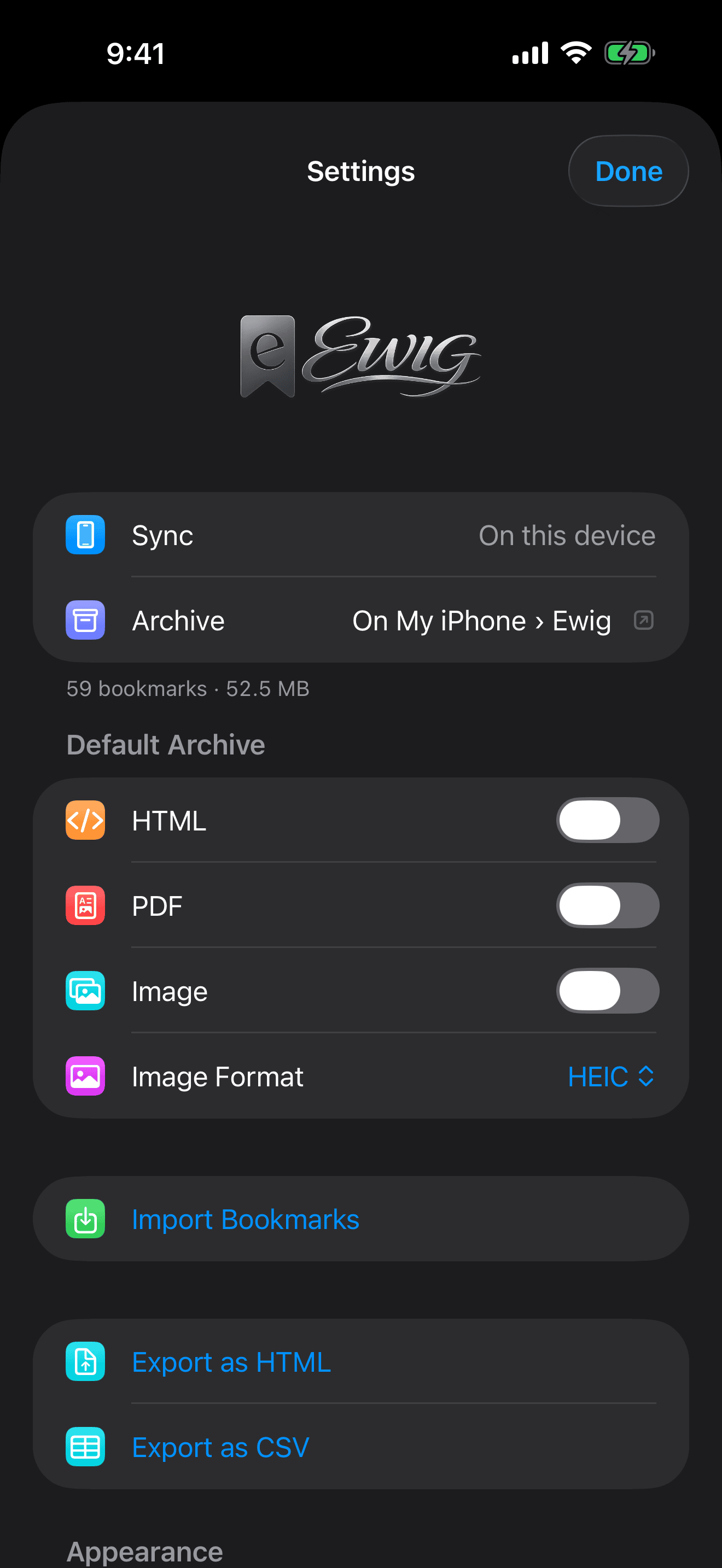
A cover is always saved. Choose the rest per bookmark, or as a synced default in Settings:
- HTML: the page and its resources in one file, opens offline in any browser.
- PDF: one continuous page, selectable text, rendered from the snapshot.
- Image: the whole page as one picture.
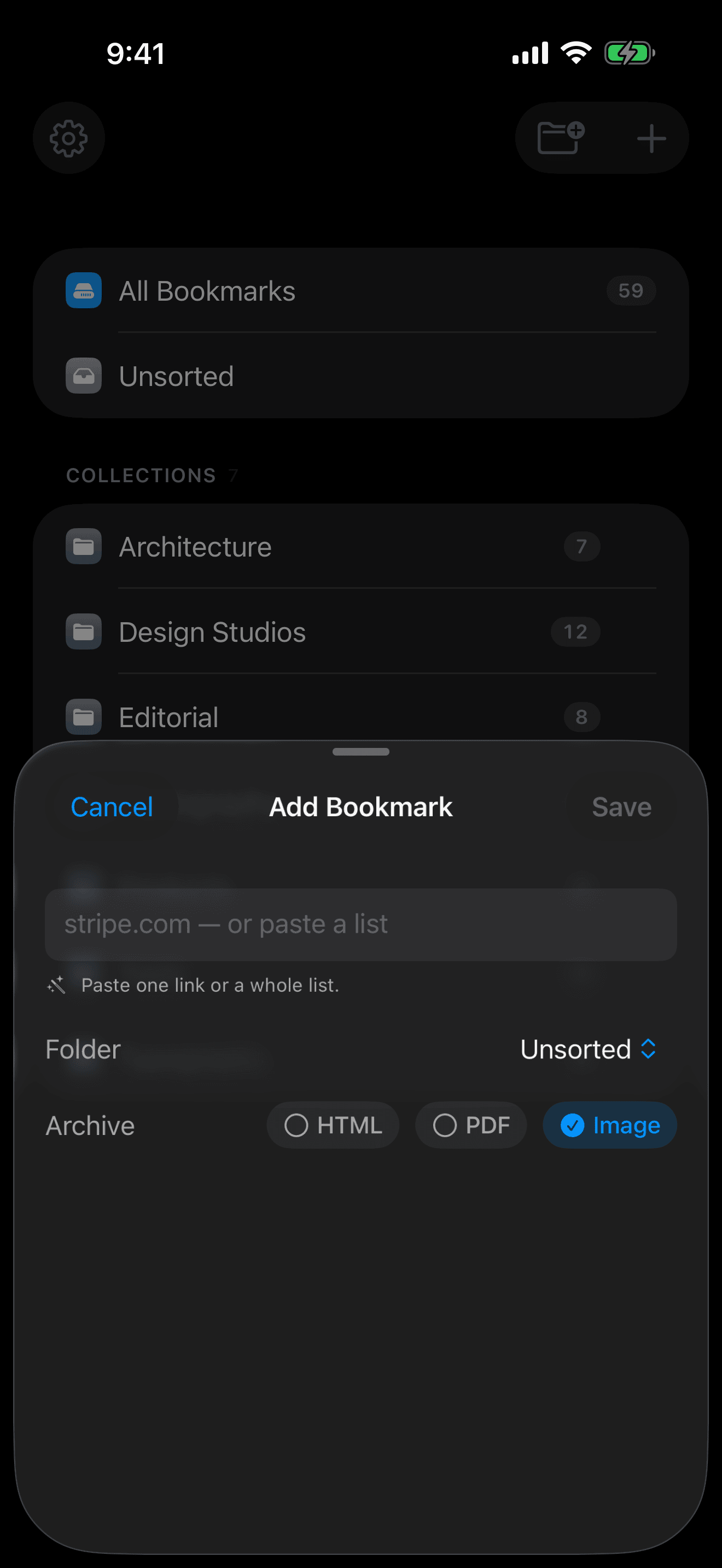
Images are compressed, each resource is stored once, and a snapshot is capped at 25 MB, a PDF at 20 MB. A link to a PDF or an image is stored as what it is.
Capture runs offscreen on the Mac, iPhone or iPad you saved from. One device owns each capture.
Quality check
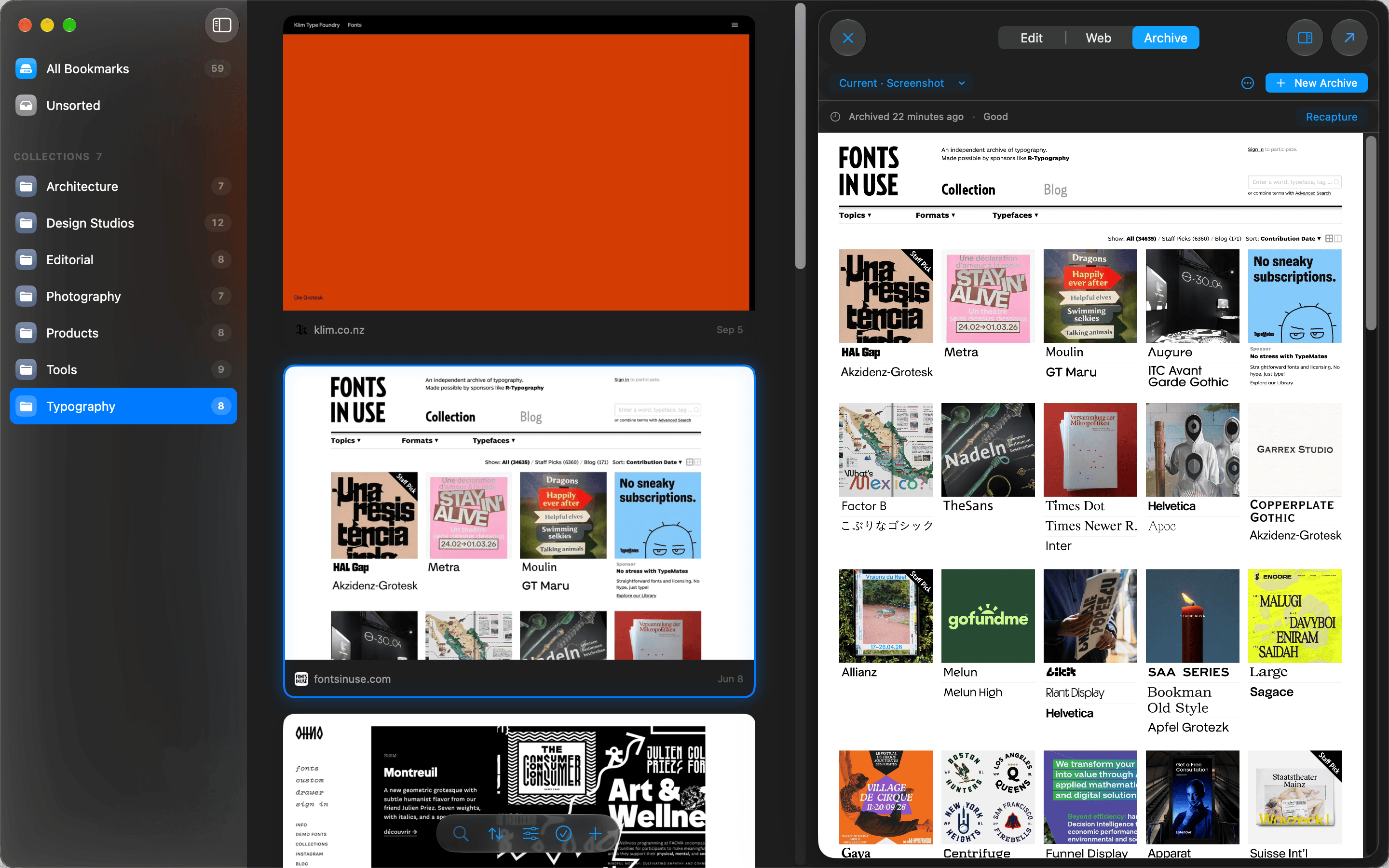
Every capture is judged before it is kept. A blank page, an error page or a login wall never replaces a good archive. Failures retry; a page that keeps failing gets a warning badge. Recapture in the card’s context menu tries now. Re-archive Outdated Pages in the ⌘K palette refreshes everything older than a date you pick. Hung pages time out.
Bookmark statuses
| Status | Meaning |
|---|---|
| Archived | Passed its quality check. |
| Pending | Queued, for example an extension save or an import. Archives in the background. |
| Failed | Failed the check or hit a timeout, blocked page or 404. Retries on its own; Recapture tries now. |
Badges show on every card and row.
Versioning pages that change
New Archive ⌘B adds a dated
version; the Archive tab picks what it includes. Every version
opens offline from the bookmark’s Archive
tab and lives in versions/ next to the page.
Covers
The card image, taken from the top of the page at a fixed width.
- Regenerate ⌘R, per card or in bulk.
- Capture your own: a photo or short video, shot in the app on Mac or iOS. Video is HEVC.
Covers and full-page images are HEIC.